Give every AI-generated visual your brand’s identity
A step-by-step guide
01
The Brand Book Library
Define your visual identity once — AI keeps every generated image on-brand
Step 1
Open Brand Book
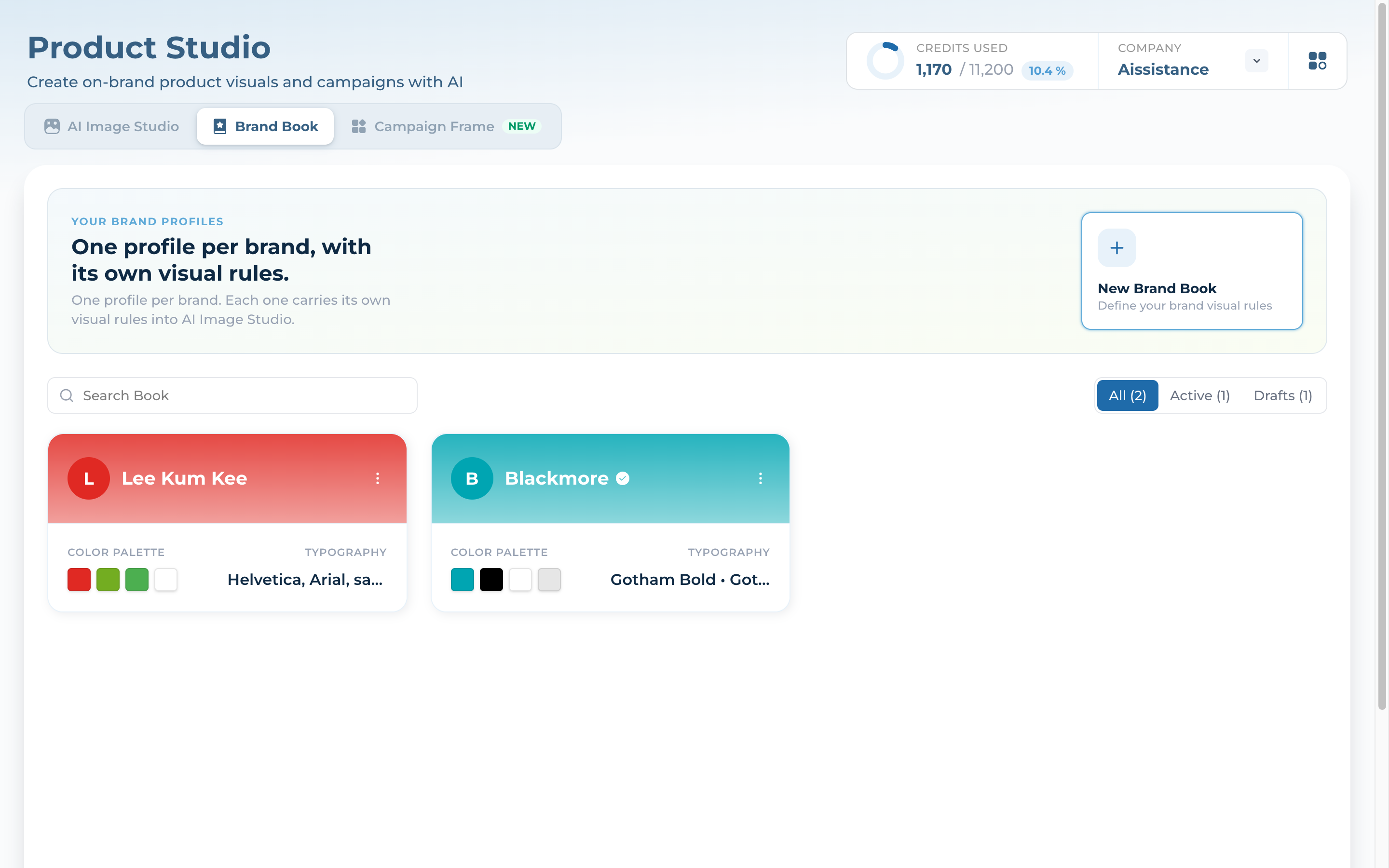
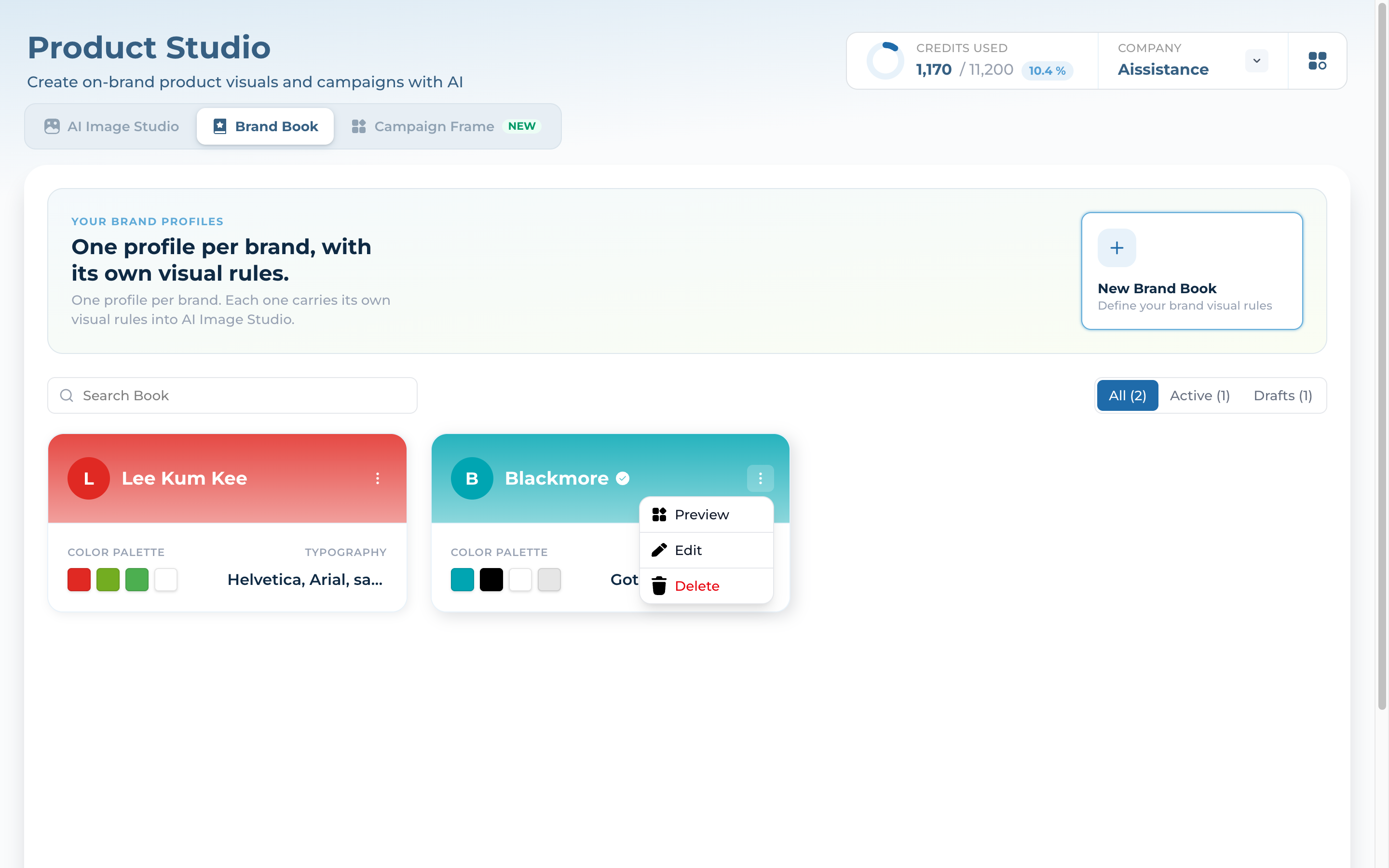
Open the Brand Book tab in Product Studio — your library of brand profiles, one per brand, each carrying its own visual rules into AI Image Studio
Every card shows the brand’s Colour Palette and Typography at a glance, plus an Active / Draft state
Filter by All / Active / Drafts, search by name, or hit New Brand Book to define one from scratch
One profile per brand — its visual rules flow into every asset
02
Create a Brand Book
Feed the AI your brand inputs — it extracts a complete visual identity
Step 2
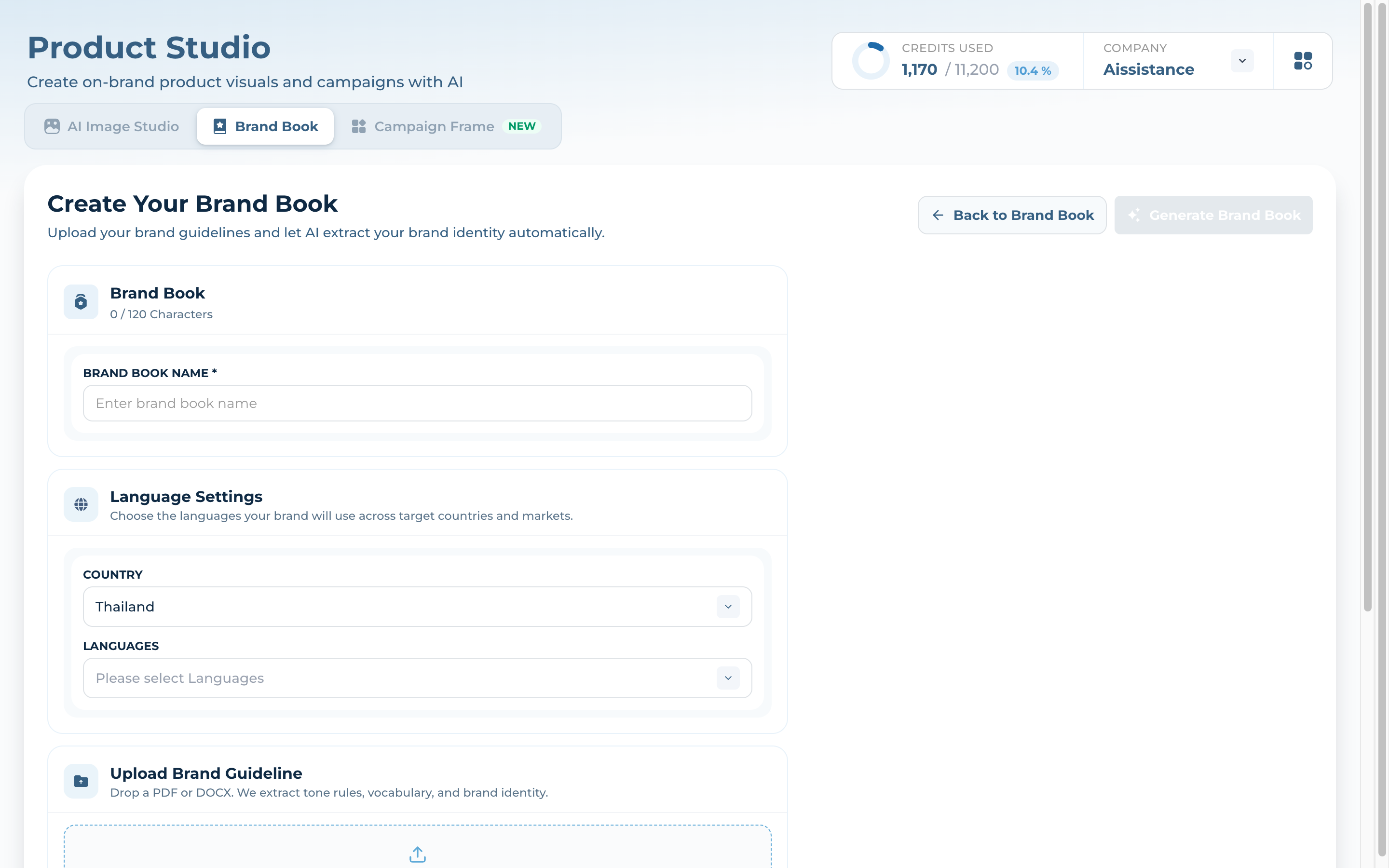
Name It & Set the Market
Give the Brand Book a name (up to 120 chars) — this is how you’ll pick it later in AI Image Studio
Set Country and Languages (Thai / English) so the identity fits every market you target
Step 3
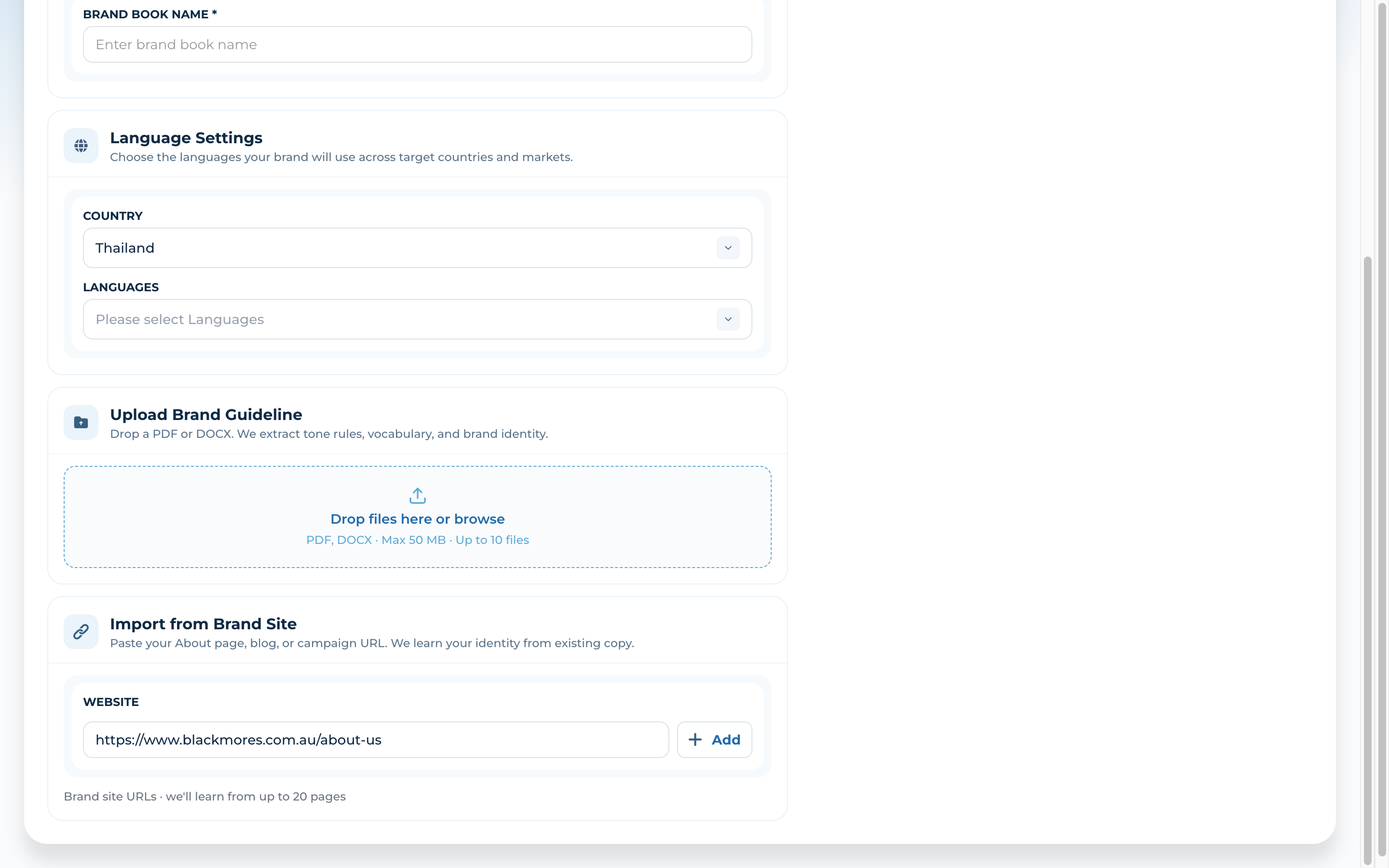
Feed It Your Brand
Upload Brand Guideline — drop a PDF or DOCX (your brand bible, ≤50 MB, up to 10 files); AI extracts your logo, colours, type, and brand identity
Import from Brand Site — paste your About page, blog or campaign URLs and it learns your identity from existing pages (up to 20 pages)
Click Generate Brand Book — AI distils it all into a tunable visual identity
Generation uses credits
03
Build the Visual System
Open the editor and shape the logo, the palette, and the type
Step 4
The Editor & Logo
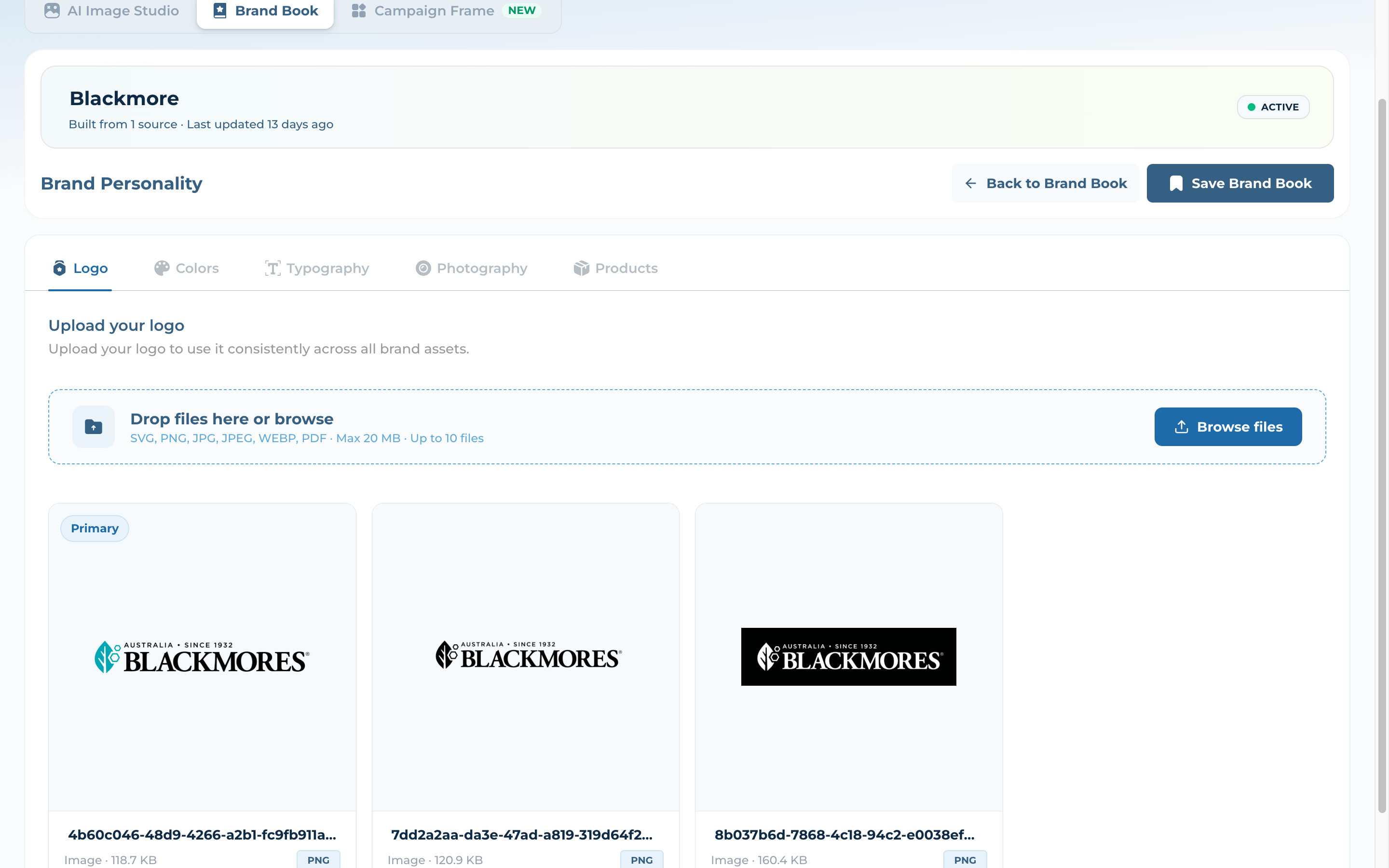
The header shows the Brand Book name, its Active / Draft state, how many sources it was built from, and Save / Back
Five tabs cover every layer of your identity: Logo · Colours · Typography · Photography · Products
Logo — upload your logo files (SVG, PNG, JPG, WEBP, PDF · ≤20 MB); AI reuses them consistently across every generated asset
Step 5
Colours & Lock
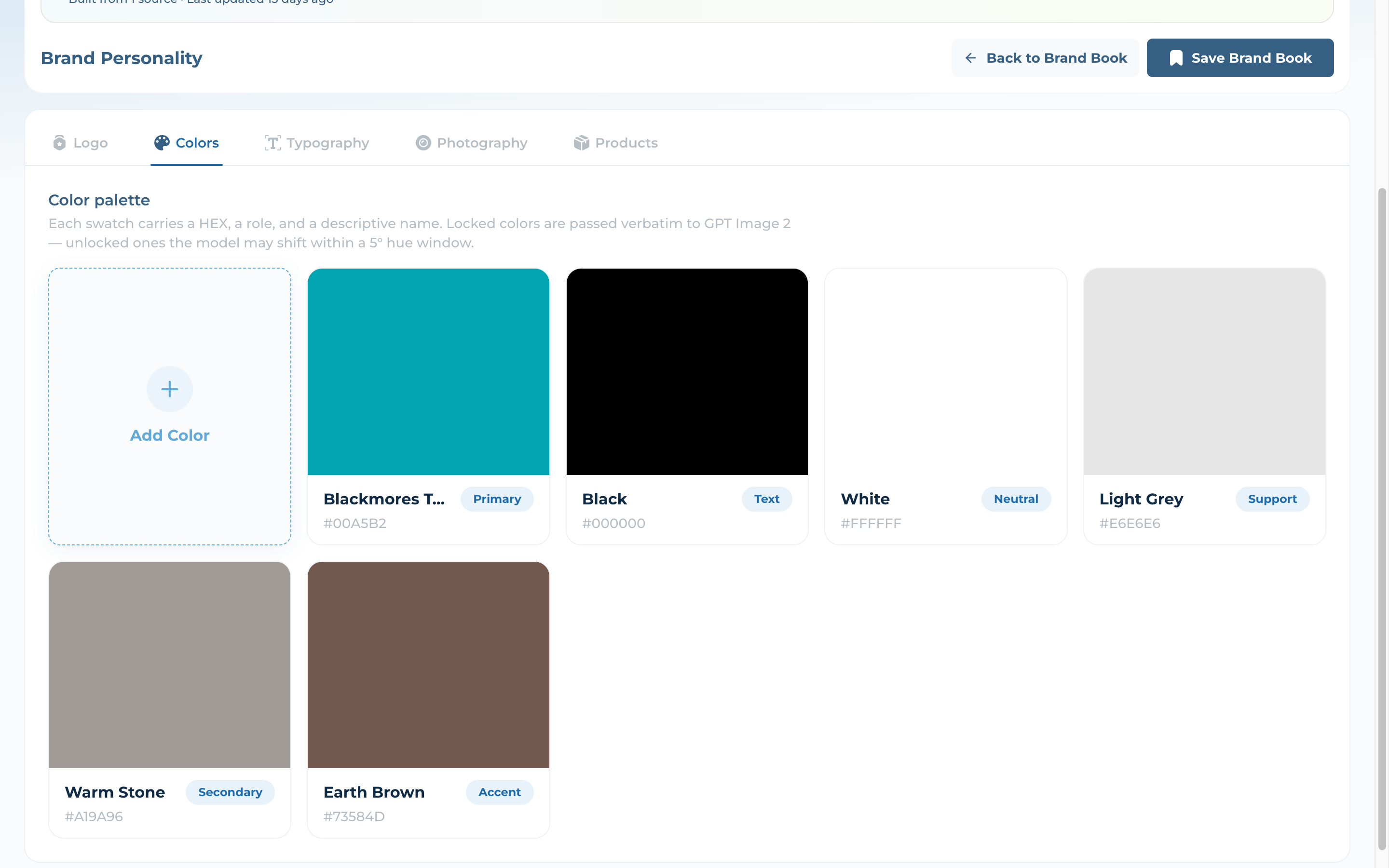
Each swatch carries a HEX, a role (Primary, Text, Neutral, Support, Secondary, Accent) and a descriptive name
Lock a colour and it’s passed verbatim to GPT Image 2; leave it unlocked and the model may shift it within a 5° hue window
Add, rename, or re-role colours so the palette matches your brand exactly
Locked colours reach the image model exactly as you set them
Step 6
Typography
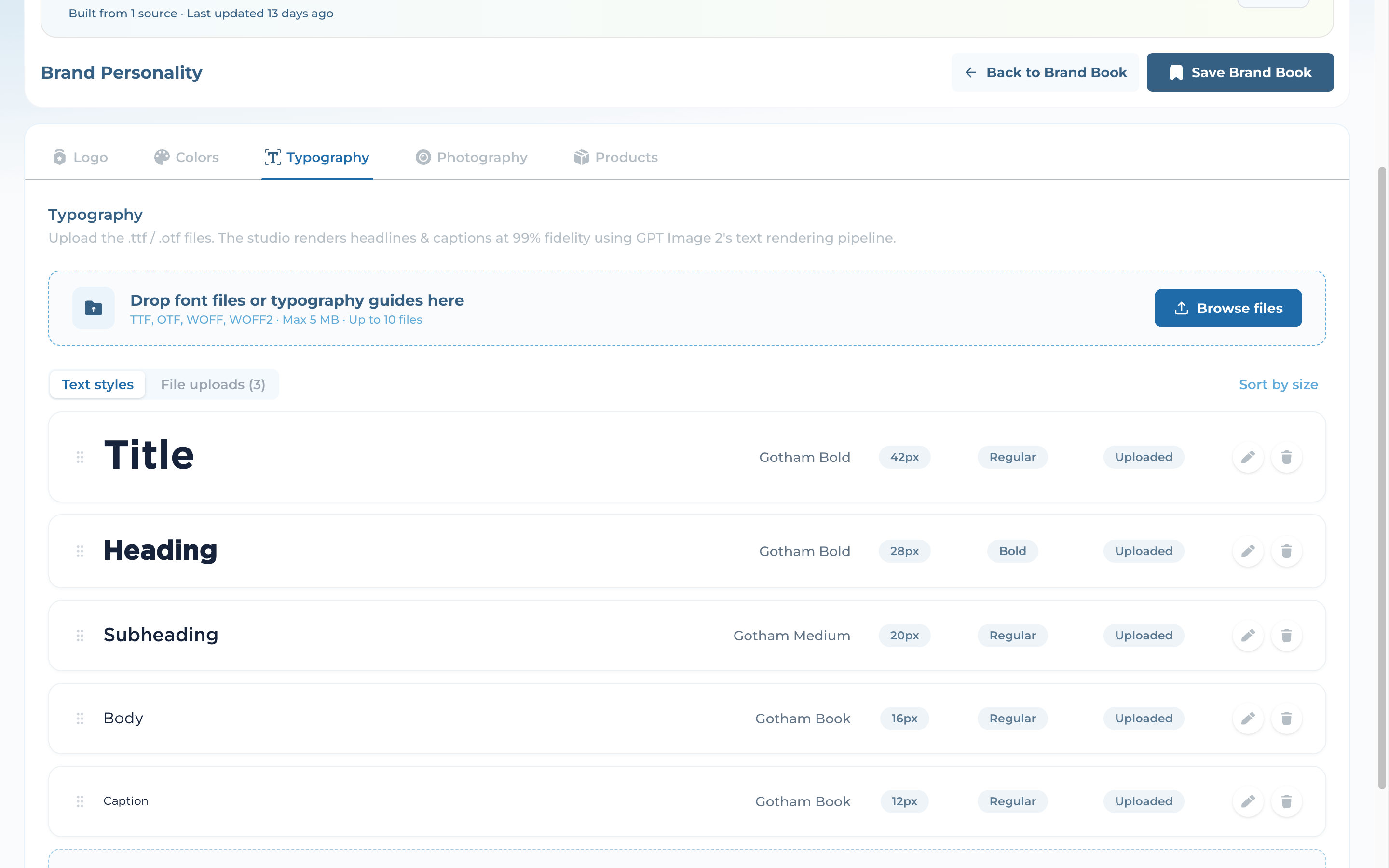
Upload your .ttf / .otf font files — the studio renders headlines & captions at 99% fidelity using GPT Image 2’s text rendering pipeline
Define text styles — Title, Heading, Subheading, Body, Caption — each with its own font, size and weight
Drag to reorder, edit or add styles so every layout uses your real type
04
Style & Products
Teach the AI your photographic look, then link the products it dresses
Step 7
Photography Style
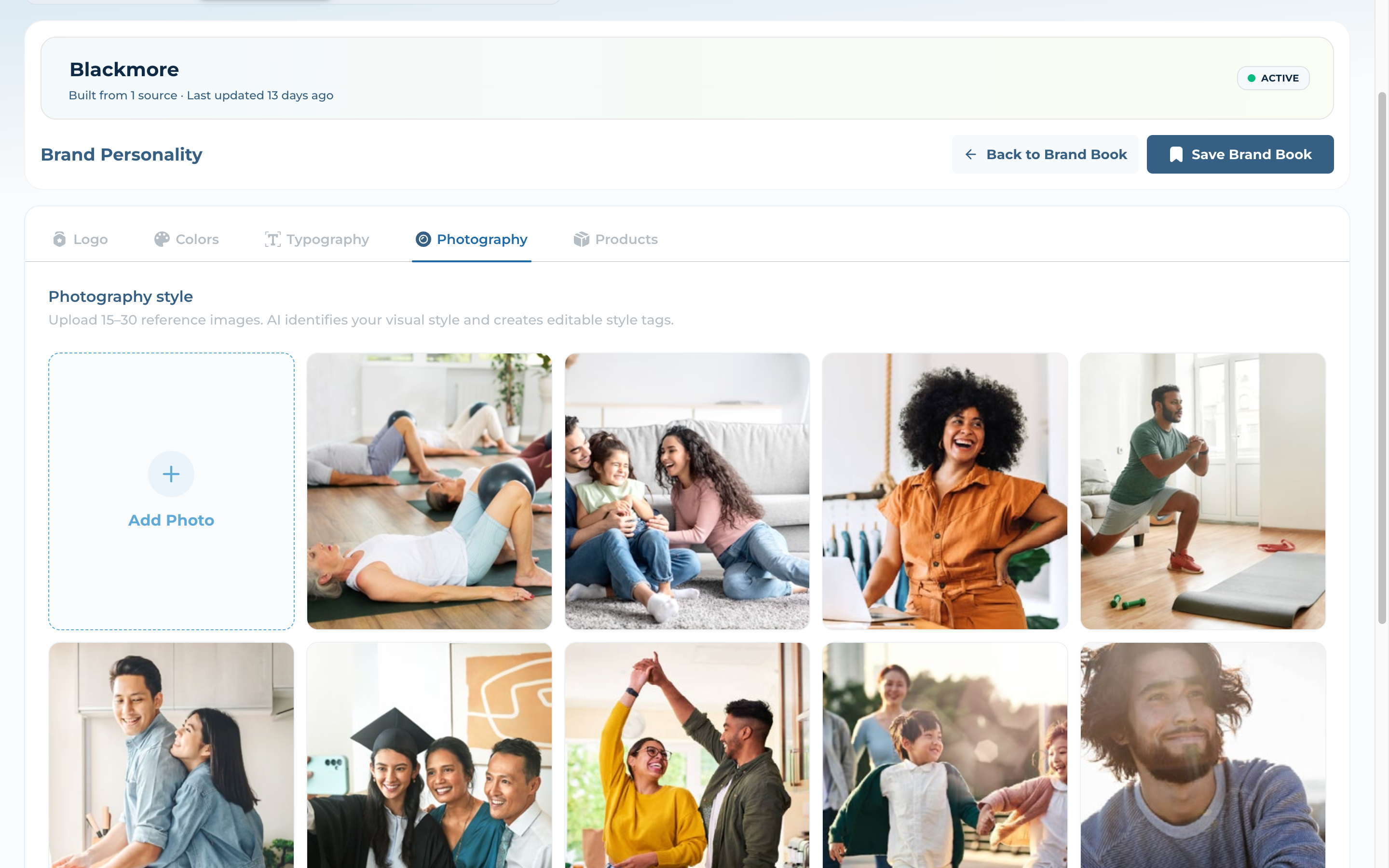
Upload 15–30 reference images — AI identifies your visual style and turns it into editable style tags
Those tags steer composition, lighting and mood so every generated shot feels like your brand
Step 8
Product Library
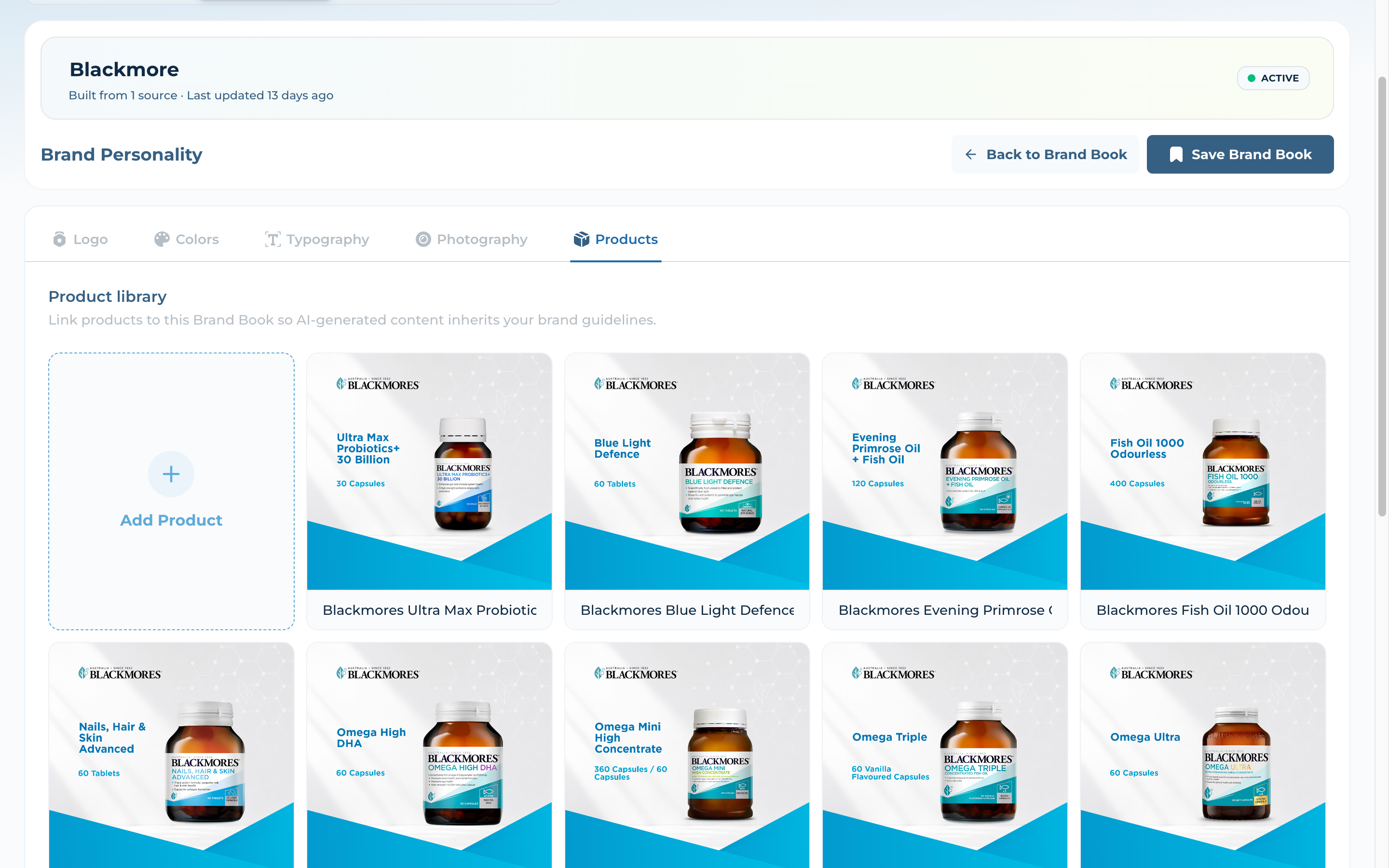
Link your real product SKUs to this Brand Book
Every image the studio generates for them inherits your brand guidelines automatically
Products dressed in your identity, every time
05
Preview & Share
Every input compiles into a polished, shareable brand book
Step 9
The Brand Book Preview
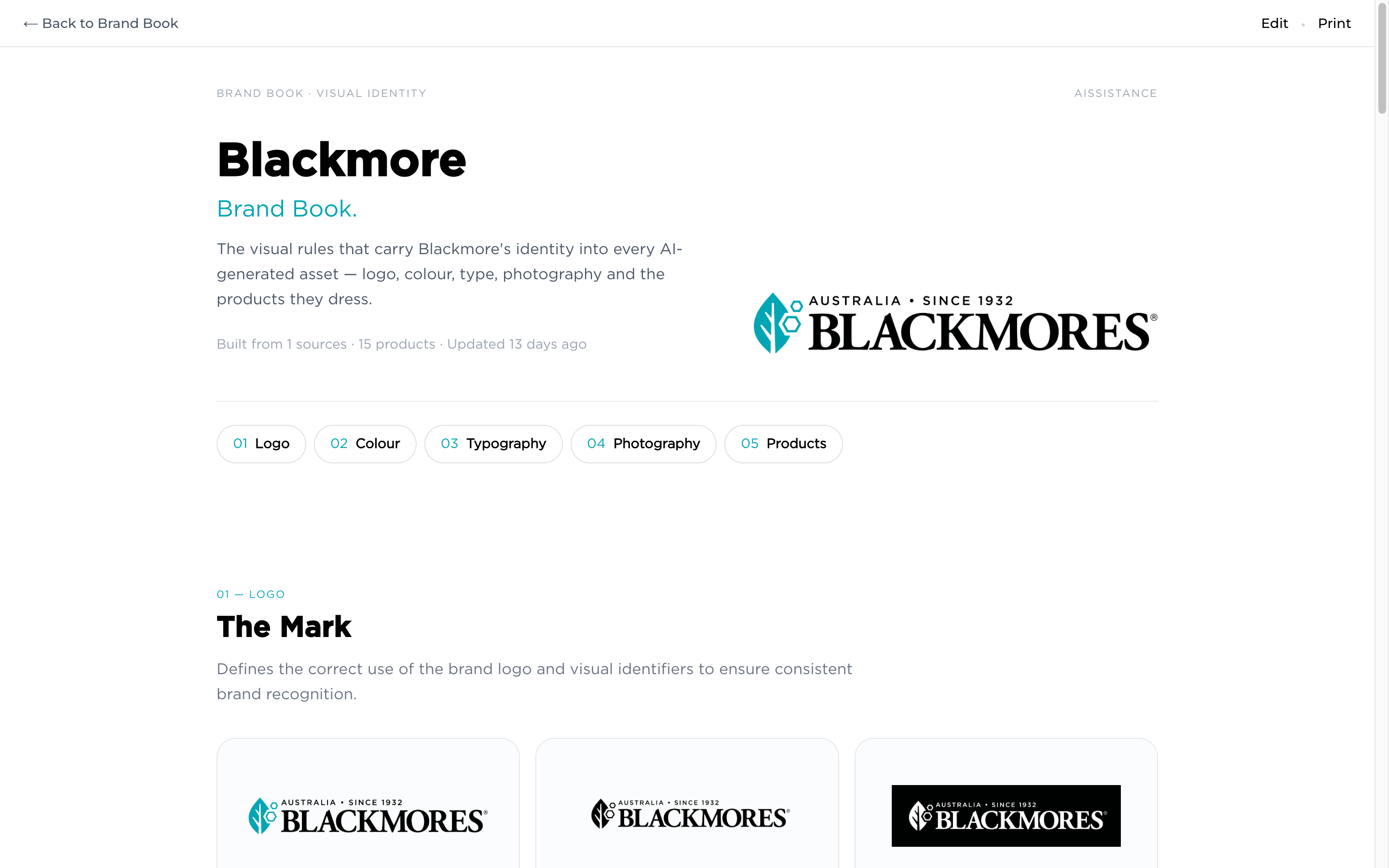
From a card’s ⋮ menu choose Preview — your inputs compile into an editorial brand-book document: Logo, Colour, Typography, Photography and Products, all in one place
It reads like a real brand guideline — safe backgrounds, the full palette with HEX and roles, the type scale, and the products it covers
Hit Print to export it as a PDF to share with your team or partners
A living brand guideline, generated for you
06
Put It to Work & Manage
Apply the identity in AI Image Studio, and keep your library sharp
Step 10
Apply in AI Image Studio
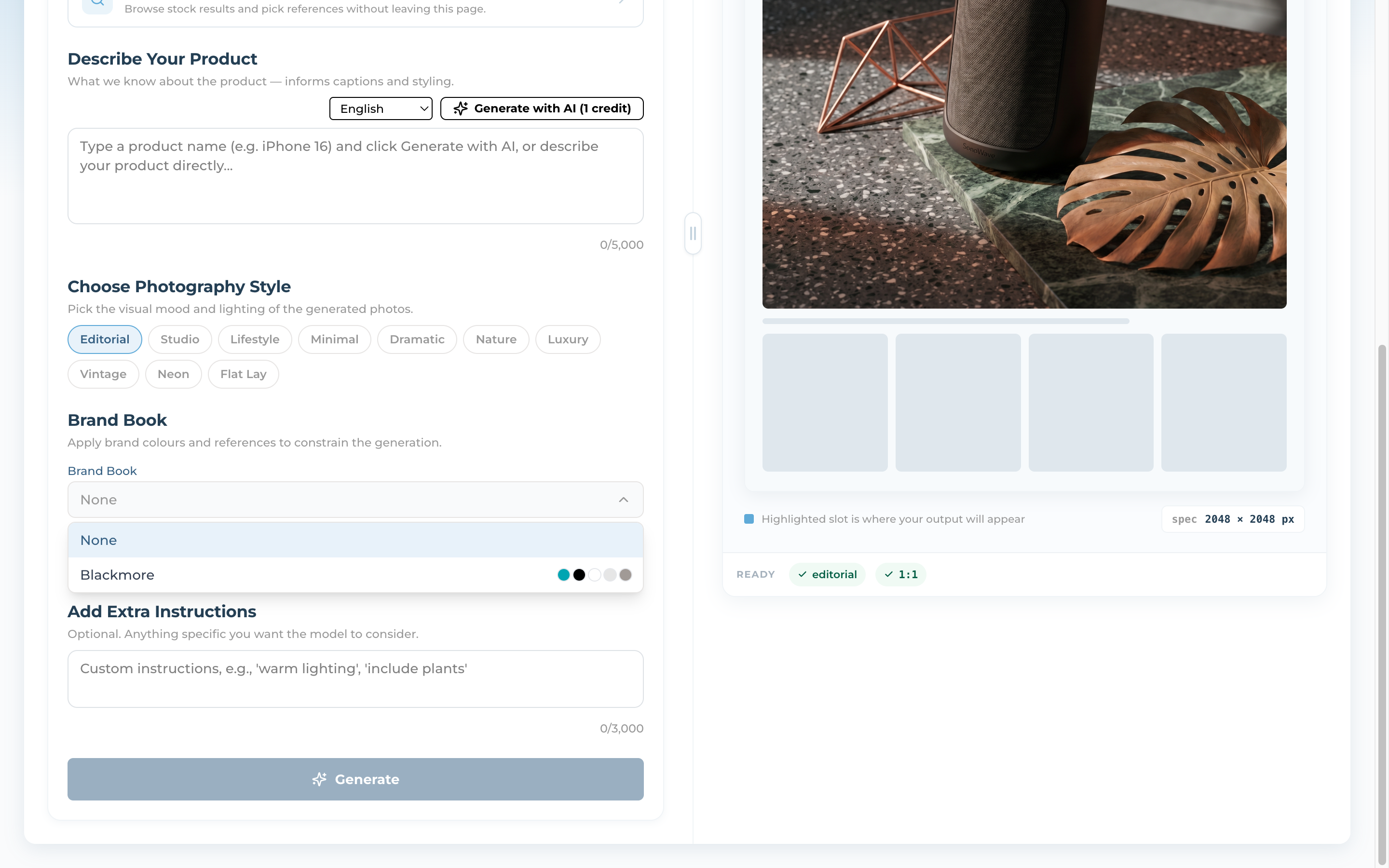
In AI Image Studio, pick your Brand Book from the dropdown — it applies your brand colours and references to constrain the generation
Pair it with a Photography Style preset and the studio renders on-brand visuals for Infographics, Carousels and Banners
Only Active Brand Books can be applied
Step 11
Manage & Iterate
Each card’s ⋮ menu offers Preview, Edit and Delete
Flip a Brand Book between Active and Draft to control what AI Image Studio can use